Fortnite Best Settings for Low-End PC — Max FPS Guide (2026)
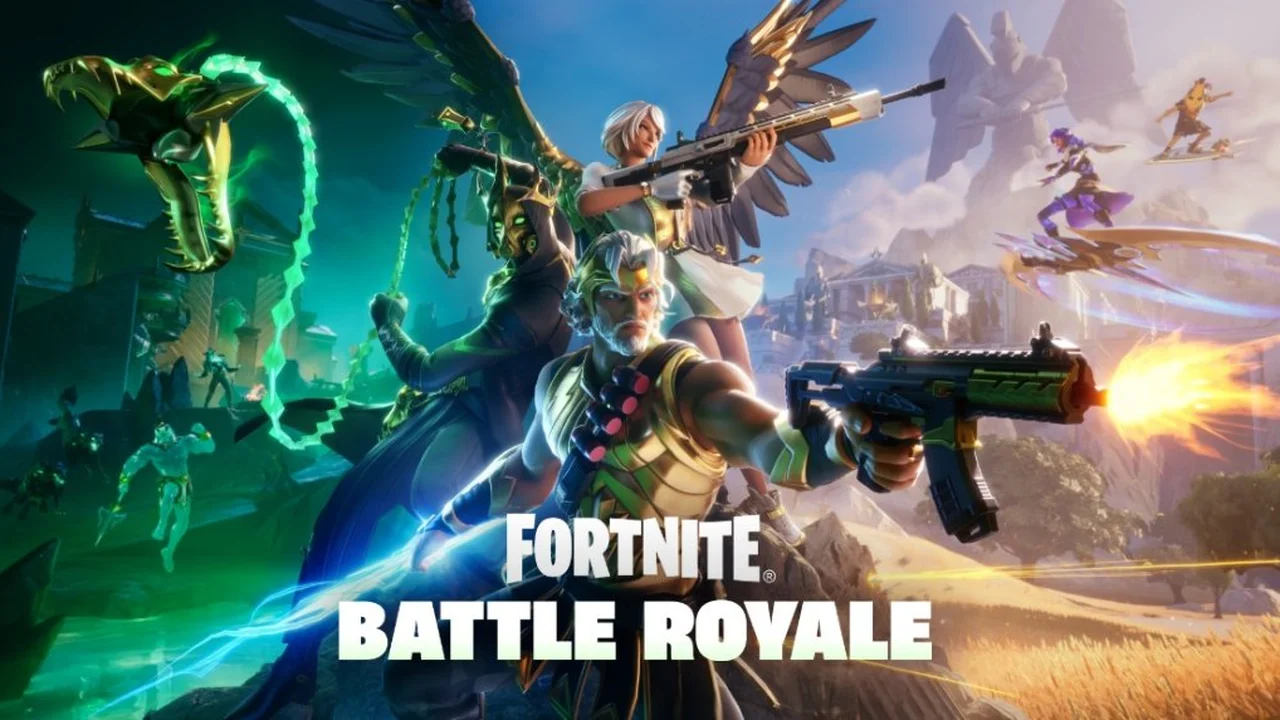
Fortnite is free, and it runs on almost anything — but the default settings will choke a low-end PC. Out of the box, the game turns on shadows, high textures and effects your hardware cannot handle, and you end up fighting the frame rate instead of other players. The fix is not a new graphics card. It is about fifteen minutes in the settings menu.
This guide walks through the exact settings to use on a low-end PC in 2026, starting with the single change that matters most: Performance Mode. Follow it step by step and a GTX 1650-class PC can hold a steady 60 FPS or better, and a GTX 1660 Super-class PC can push towards 120 FPS. Everything here is tested against the current Chapter 7 build.
Quick summary
- Fortnite's official minimum spec is a Core i3-3225, 8GB of RAM and an Intel HD 4000-class GPU — but minimum means 30 FPS at 720p, not a good experience.
- The single biggest FPS gain on a low-end PC is switching Rendering Mode to Performance (Lower Graphical Fidelity).
- Set resolution to 1080p, 3D Resolution to 100%, View Distance to Near or Medium, Textures and Meshes to Low, and turn Shadows, Anti-Aliasing, Motion Blur and Ray Tracing off.
- Turn on NVIDIA Reflex On + Boost if you have an NVIDIA GPU, and cap your frame rate at a value your PC can actually hold.
- Use Performance Mode first. Switch to DirectX 12 only if Performance Mode stutters or looks too rough on your hardware.
- Windows tweaks — Game Mode on, High Performance power plan, updated GPU drivers, game on an SSD — add free frames on top.
What PC do you need to run Fortnite in 2026?
Epic updated Fortnite's official system requirements for Chapter 6, and they still apply in Chapter 7. The minimum spec is genuinely low, but read it carefully — it targets 720p at 30 FPS, which is playable but not competitive.
| Tier | CPU | GPU | RAM | Storage |
|---|---|---|---|---|
| Minimum (720p, 30 FPS) | Core i3-3225 or AMD equivalent | Intel HD 4000, Radeon HD 7870 or GTX 660 | 8 GB | 29 GB SSD |
| Recommended (1080p, 60 FPS, Medium) | Core i5 or Ryzen 5 class CPU | GTX 960, R9 280 or better | 8 GB | 29 GB SSD |
| Budget 120 FPS target | Core i5-9400 or Ryzen 5 3600 | GTX 1660 Super, RTX 3050 or RX 580 | 16 GB | 29 GB NVMe SSD |
Two things stand out. First, 8GB of RAM is the floor, not the comfort zone — 16GB makes a real difference when Windows, Discord and Fortnite are all running at once. Second, the game needs about 29GB of SSD space. If you are still running Fortnite from a hard drive, moving it to an SSD is the cheapest upgrade you can make: it fixes stuttering when the game streams in new areas, which no settings change can fix.
If your PC is below the minimum spec — Intel UHD 620 graphics, or anything weaker than a GTX 1050 — be honest with yourself: even with every setting minimised, you will not reach a stable 60 FPS in Chapter 7. In that case, this guide will still get you the best the hardware can do, but a hardware upgrade is the real answer. Our best games for 2GB RAM PC guide lists games that run well on that class of machine.
The one setting that matters most: Performance Mode
Before you touch any other setting, change the Rendering Mode. This is the single biggest FPS gain in the game, and it takes ten seconds.
1. Open Fortnite and go to Settings, then the Video tab.
2. Under Display, find Rendering Mode and change it to Performance — Lower Graphical Fidelity.
3. Restart the game when it asks you to.
Performance Mode is a separate lightweight rendering path that strips out expensive lighting, shadows and materials. On modest hardware it raises frame rate more than any other setting and cuts CPU load as well. The trade-off is visual: the game looks flatter, edges are rougher, and the world loses some of its polish. But every player model stays clearly readable, which is what matters in a fight.
If Performance Mode looks too rough or stutters on your PC, try DirectX 12 instead — we compare the two below. But start with Performance Mode. Every competitive settings guide for 2026 lists it as the first change, and it is the setting that turns an unplayable 30 FPS into a playable 60-plus.
Best Fortnite settings for low-end PC
With Performance Mode on, use these values. Apply them in Settings, Video, then restart the game and test in a real match — the lobby runs lighter than a fight, so do not judge your FPS until you are in a busy endgame.
| Setting | Recommended value | Why |
|---|---|---|
| Window Mode | Fullscreen | Lowest latency, avoids desktop compositing |
| Resolution | 1920x1080 or your monitor's native resolution | 1080p is the practical baseline |
| Frame Rate Limit | Your monitor's refresh rate, or a stable value your PC can hold | A steady cap feels better than a number that swings |
| Rendering Mode | Performance — Lower Graphical Fidelity | The single biggest FPS gain |
| 3D Resolution | 100% | Keeps enemies and distant edges clear |
| View Distance | Near or Medium | Saves 5 to 7 FPS, and does not hide other players |
| Textures | Low | Saves GPU memory and processing |
| Meshes | Low | The common competitive choice in Performance Mode |
| Shadows | Off | The largest single setting by GPU cost |
| Anti-Aliasing | Off | Adds GPU overhead with no competitive benefit here |
| Effects | Low | Less clutter in fights |
| Post-Processing | Low | Cheaper to render, clearer picture |
| VSync | Off | Reduces input delay, though tearing can appear |
| Motion Blur | Off | Reduces visual clarity for no gameplay benefit |
| Ray Tracing | Off | Far too heavy for low-end hardware |
| NVIDIA Reflex Low Latency | On + Boost | Reduces the render queue on supported NVIDIA cards |
| Show FPS | On | Makes frame drops easy to spot while testing |
| Auto Download High Resolution Textures | Off | Stops the game downloading textures you do not need |
Two settings deserve a warning. First, do not lower 3D Resolution below 100% to chase frames — it blurs the whole image and makes distant players harder to identify, which costs you more fights than the frames are worth. Second, do not turn VSync on to fix screen tearing unless you have to: it adds input delay, and in a shooter that delay is worse than the tearing.
Performance Mode or DirectX 12: which should you use?
Fortnite offers three rendering modes, and the choice matters far more than any individual quality slider. Here is how they compare on low-end hardware.
| Mode | Best for | Trade-off |
|---|---|---|
| Performance — Lower Graphical Fidelity | Competitive FPS, older hardware, simple setup | Rougher edges and reduced visual detail |
| DirectX 11 | Older GPUs that dislike the DX12 path | Better looking than Performance Mode, lower overhead than DX12, more stable on pre-2018 hardware |
| DirectX 12 | Modern CPUs and GPUs, better image controls | More settings to tune, possible shader stutter after updates |
Use Performance Mode first. It is the easiest route to high FPS and the best choice for low-end and mid-range systems. Switch to DirectX 12 only if Performance Mode stutters, looks too rough for you, or leaves your GPU underused — DX12 exposes more controls, including DLSS on NVIDIA RTX cards and FSR on AMD, which can help on modern hardware once the shader cache settles. If you do use DX12, the same rules apply: Shadows off, Anti-Aliasing off (or TSR Low if shimmering distracts you), Textures Low, Motion Blur off, and Reflex On + Boost.
Windows settings that add free FPS
Fortnite's settings are only half the story. These Windows tweaks cost nothing and add frames on top, especially on low-end PCs where every resource counts.
- Turn on Game Mode: Settings, Gaming, Game Mode. It stops Windows Update and background tasks from stealing CPU time mid-match.
- Use the High Performance power plan: Control Panel, Power Options, High Performance. On laptops, this is the difference between your CPU boosting properly and throttling itself to save battery — play plugged in.
- Update your GPU drivers: Download the latest driver from NVIDIA, AMD or Intel. Fortnite patches regularly, and driver updates are where the fixes for new-season stutter usually land.
- Close background apps: Discord, Chrome and Spotify all eat RAM and CPU. Close Chrome especially — a dozen tabs can use more RAM than Fortnite itself.
- Put Fortnite on an SSD: If the game is on a hard drive, move it. Chapter 7 streams in new areas constantly, and a hard drive causes the hitching that settings cannot fix.
- Enable hardware-accelerated GPU scheduling: Settings, Display, Graphics, Change default graphics settings. It helps on most modern systems, though the gain is small.
The same principles apply to other competitive games. Our best game settings guide for low-end PC covers the Windows-level tweaks in more depth, and our Valorant settings guide uses the same FPS-first approach for Riot's shooter.
What FPS should you expect on your hardware?
Set realistic expectations before you start tuning, or you will chase a number your hardware cannot reach. These are the targets community benchmarks show for the settings in this guide.
| Your hardware | Realistic target | Notes |
|---|---|---|
| Intel HD 4000 or UHD 620, 8GB RAM | 30 FPS at 720p | Playable but not competitive; consider a hardware upgrade |
| GTX 1050 or GTX 1650, 8GB RAM | 60 FPS at 1080p | The most common budget result with Performance Mode |
| GTX 1660 Super, RTX 3050 or RX 580, 16GB RAM | 120 FPS at 1080p | Needs a 144Hz monitor to see the benefit; cap at 120 or 132 FPS |
| RTX 3060 or better | 144 FPS plus | The settings here are overkill; use a competitive 240 FPS config instead |
A steady 60 FPS is more useful than a number that bounces between 90 and 140. If your frames swing wildly, lower your frame rate cap to a value your PC can hold in real fights — a stable cap feels better and aims better than an unstable high one. And remember that Golden Week is running right now: if you want to put these settings to the test, our Fortnite Golden Week guide explains the boosted treasure odds, and the Treasure Hunters Battle Pass breakdown covers whether the season is worth your time.
Frequently asked questions
What are the best Fortnite settings for a low-end PC?
Set Rendering Mode to Performance (Lower Graphical Fidelity), resolution to 1080p, 3D Resolution to 100%, View Distance to Near or Medium, Textures and Meshes to Low, and turn Shadows, Anti-Aliasing, Motion Blur, VSync and Ray Tracing off. Turn on NVIDIA Reflex On + Boost if you have an NVIDIA GPU.
Is Performance Mode still in Fortnite in 2026?
Yes. Performance Mode is still available in Chapter 7 and remains the single biggest FPS gain for low-end and mid-range PCs. It is a separate lightweight rendering path that strips out expensive lighting and materials.
How much FPS will I get in Fortnite on a GTX 1650?
With Performance Mode and the settings in this guide, a GTX 1650 with 8GB of RAM can hold around 60 FPS at 1080p. A GTX 1660 Super-class GPU with 16GB of RAM can push towards 120 FPS on a 144Hz monitor.
Should I use DirectX 11, DirectX 12 or Performance Mode?
Use Performance Mode first — it is the easiest route to high FPS on low-end hardware. Use DirectX 12 if Performance Mode stutters or looks too rough, and use DirectX 11 only on older GPUs that struggle with the DX12 path.
Does lowering View Distance hide other players in Fortnite?
No, not at the values in this guide. View Distance affects objects and scenery, not player characters, so Near or Medium saves 5 to 7 FPS without making enemies harder to spot. Some guides recommend keeping it on Epic, but on a low-end PC the frames are worth more than the distant scenery.
Related articles
 Best Games for 2GB RAM PC — 15 Games That…
 Best Games for 4GB RAM PC — 20 Games That…
 Best Games for 8GB RAM PC — AAA Games Tha…
 Best Game Settings for Low-End PC — How t…
Setup.gg: Best Fortnite Settings 2026: High FPS and Low Latency
AVG: Best Fortnite Settings to Boost Graphics
Switchblade Gaming: Best Fortnite PC Settings 2026: FPS Boost, Competitive and Visual Guide
Frozen Tweaks: Fortnite FPS Boost: Best Settings (2026)
AlphaRes: Best Fortnite Settings for 120 FPS on Budget PC (2026)
Hero image: Epic Games.