CS2 Best Settings for Low-End PC: How to Get Max FPS Without Losing the Fights That Matter
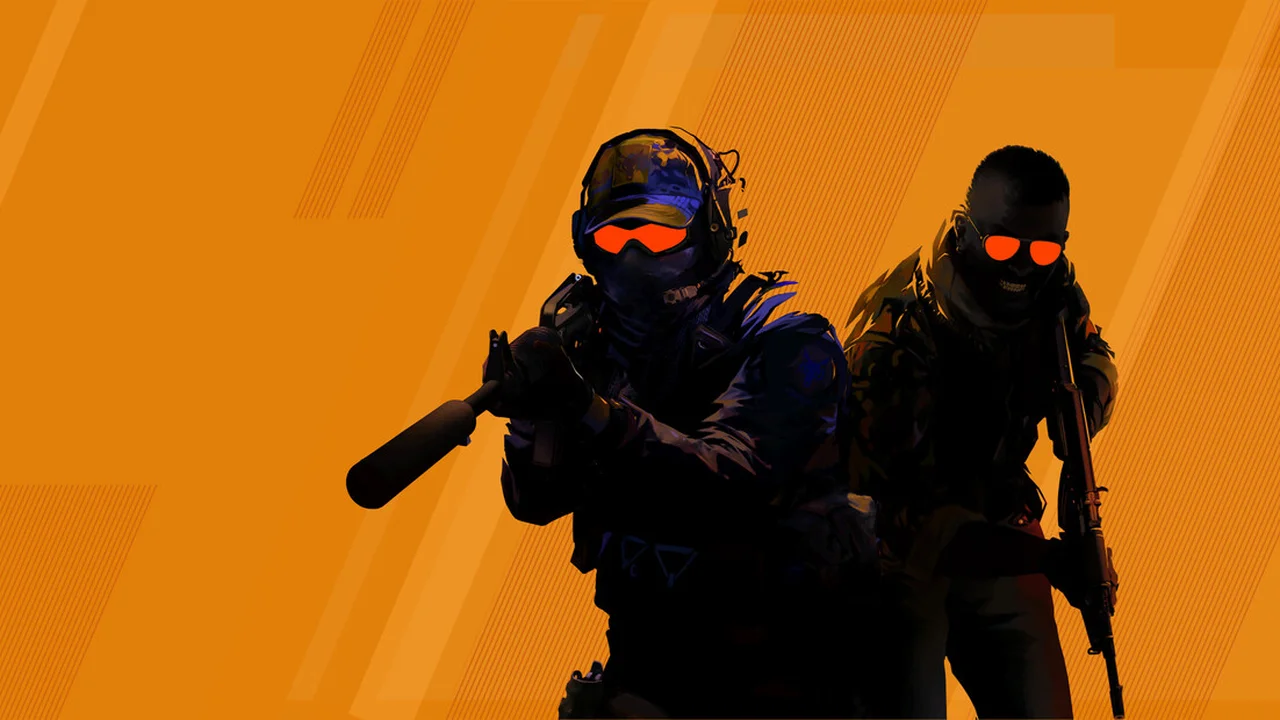
Counter-Strike 2 is free, it is the biggest PC shooter in India, and it is also one of the most demanding games to run well on a weak PC. The good news is that CS2 gives you every setting you need to fix that — and most of the settings that cost you frames are things you will never notice in a firefight. This guide gives you the exact settings to use on a low-end PC, explains what each one actually does, and tells you which popular "FPS boost" tricks are a waste of time in 2026. CS2 is free on Steam and officially needs 8GB of RAM, a four-thread CPU and a DirectX 11 graphics card with 1GB of memory — we checked the requirements on Steam India on November 26, 2026.
Quick summary
- The biggest FPS gains come from resolution, shadows, shaders and particles — set them low first, then tune the rest one setting at a time.
- Play in Fullscreen, not windowed, at your monitor's native resolution if you can hold 60 FPS — or drop to 1280x960 stretched if your GPU is struggling.
- Keep Boost Player Contrast on and Dynamic Shadows on All — these help you see enemies, and they cost almost nothing.
- Cap your FPS at a number your PC can actually hold (60, 75 or 90) instead of chasing an uncapped counter that swings wildly in smokes and firefights.
- Keep launch options minimal: -novid and +fps_max 0 are the only ones worth using. Old CS:GO commands like -threads do nothing in CS2.
- CS2 officially needs 8GB of RAM — on 4GB it will stutter, so close everything else before you play. Our best FPS games for low-end PC guide has ten shooters that run on weak hardware, including CS2 itself.
The best CS2 video settings for low-end PC
| Setting | Recommended value | Why |
|---|---|---|
| Display mode | Fullscreen | Lowest input lag, best GPU use |
| Resolution | Native, or 1280x960 stretched | Native for clarity, stretched for FPS |
| Refresh rate | Highest your monitor supports | A 144Hz panel left at 60Hz wastes frames |
| Boost Player Contrast | Enabled | Enemies stand out, costs almost nothing |
| Wait for Vertical Sync | Disabled | V-Sync adds input lag and caps FPS |
| Multisampling Anti-Aliasing | None (2x if stretched) | Big FPS cost for little benefit |
| Global Shadow Quality | Low | Shadows are expensive; Low still shows players |
| Dynamic Shadows | All | Keeps useful player shadows |
| Model / Texture Detail | Low | Textures cost VRAM, not skill |
| Texture Filtering Mode | Bilinear | Cheapest filtering that still looks fine |
| Shader Detail | Low | Surface lighting only |
| Particle Detail | Low | Smokes and fire are cheaper to render |
| Ambient Occlusion | Disabled | Big cost; Medium if you want contact shadows |
| High Dynamic Range | Performance | Cheapest HDR mode |
| FidelityFX Super Resolution | Balanced or Performance, if GPU-limited | Only if your GPU is the bottleneck |
| NVIDIA Reflex Low Latency | Enabled | Lower latency on supported NVIDIA cards |
| Maximum FPS in Game | A cap your PC can hold (60/75/90) | Stable frames beat a swinging counter |
| Maximum FPS in Menus | 60 | Stops the menu from pinning your GPU |
Start with this whole table, play a few Deathmatch games, and only then change one thing at a time. If a setting does not change how the game feels, leave it where it is.
Resolution: start native, drop to 1280x960 if you must
Resolution is the single biggest FPS lever in CS2, because it decides how many pixels your GPU has to draw every frame. Start at your monitor's native resolution — usually 1920x1080 — and check your FPS in a real match, not in the menu. If you are holding a stable 60 or more, stay there: the game looks better, and you can see enemies more clearly at range. If you are dropping below 60 in fights, drop to 1280x960 in a 4:3 stretched aspect ratio. This is the resolution most competitive players use: it renders fewer pixels, so your GPU works less, and the stretched image makes player models appear wider on screen. It does not change hitboxes — that is a myth — but it does make targets easier to track. A middle option is 1280x720 in 16:9, which keeps the normal aspect ratio while cutting the pixel count by more than half. Whatever you pick, set your refresh rate to the highest your monitor supports first: a 144Hz panel accidentally left at 60Hz will hide frames you are already rendering.
Launch options: keep it minimal
Steam launch options are where most "FPS boost" guides go wrong, because they copy long lists of CS:GO-era commands that do nothing in CS2. Use only two. -novid skips the intro video so the game starts faster, and +fps_max 0 removes the FPS cap so you can see what your PC can actually do while testing. That is it. Do not add -threads — Source 2 manages threads itself, and forcing a thread count does not help. Do not add -tickrate — it does not exist in CS2, because the game uses subtick updates instead of tickrate. Do not add -high, -nod3d9ex or any of the other commands from old guides: they are either ignored or they cause stuttering on modern systems. To set the two that matter, right-click Counter-Strike 2 in Steam, choose Properties, and paste `-novid +fps_max 0` into the Launch Options box. Once you know what FPS your PC holds, put a cap back in the in-game Maximum FPS setting instead of leaving it uncapped — a stable 75 FPS feels better than a counter that swings between 60 and 140 every time a smoke pops.
Windows settings that actually help
The game settings are only half the job — Windows is the other half, and these four changes cost nothing. Turn on Game Mode in Windows Settings, so Windows stops background tasks from stealing CPU time while you play. Set your power plan to High Performance, so your CPU and GPU are not throttled to save battery — this matters a lot on laptops. Update your GPU drivers from NVIDIA or AMD directly, not from Windows Update, because CS2 gets driver-level optimisations with most releases. And close everything you do not need before launching: Chrome with twenty tabs, Discord's hardware acceleration, Spotify, and any recording software will all eat the RAM and CPU that CS2 wants. On a PC with 8GB of RAM, a browser alone can cost you 20 FPS. For the full Windows-side walkthrough — Game Mode, GPU scheduling, power plans, driver updates and background apps — our how to increase FPS in any game guide covers every step, and the PGL Major Singapore is running right now if you want to see what good CS2 looks like — our Round 4 recap has Eternal Fire qualifying and FaZe crashing out.
How to test your settings properly
Do not judge settings by the FPS counter in the menu — judge them in the moments that matter. Turn on the FPS display with the console command cl_showfps 1, then play the same route on the same map, through the same smoke, three times: once with your current settings, once after each change. Change one setting at a time, or you will never know which one helped. Pay attention to the worst moments, not the average: a setup that shows 150 FPS in spawn and 45 FPS in a firefight is worse than a setup that holds 75 FPS everywhere. If your GPU is the bottleneck — FPS goes up when you lower resolution — then FidelityFX Super Resolution on Balanced or Performance will help. If your CPU is the bottleneck — FPS barely changes when you lower resolution — then no graphics setting will save you, and the fix is closing background apps, not turning more things down. And remember that shadows on Low still show player shadows, which is the information you actually need: an enemy's shadow around a corner is worth more than pretty lighting.
What if you only have 4GB of RAM?
Be honest with yourself: CS2 officially needs 8GB of RAM, and on 4GB it will stutter when the game loads assets mid-round. You can still play — set everything in the table above to its lowest value, use 1280x960, close every other program including your browser, and set Maximum FPS to 60 so the game is not fighting for memory it does not have. But the real fix is a RAM upgrade: 8GB of DDR4 is the cheapest meaningful upgrade you can make to a low-end PC, and it helps every game you own, not just CS2. If you are buying a PC for CS2, 16GB is the comfortable spot — and our best games for 16GB RAM PC guide shows what else opens up once you have the memory.
Frequently asked questions
What is the best resolution for CS2 on a low-end PC?
Start at your monitor's native resolution, usually 1920x1080. If you cannot hold 60 FPS in fights, drop to 1280x960 in 4:3 stretched — it renders far fewer pixels and makes player models appear wider. Do not go below 1280x720 unless your GPU is very old.
Does FidelityFX Super Resolution help in CS2?
Yes, but only if your GPU is the bottleneck. Set it to Balanced or Performance and test on the same map. If your FPS does not change when you lower resolution, your CPU is the limit, and FSR will not help.
What launch options should I use for CS2?
Just two: -novid and +fps_max 0. Old CS:GO commands like -threads and -tickrate do nothing in CS2, and long launch-option lists from old guides can cause stuttering.
Does NVIDIA Reflex increase FPS?
No — Reflex is a latency feature, not an FPS feature. It reduces the delay between your mouse and the screen, which makes the game feel more responsive. Enable it on supported NVIDIA cards, and try Enabled + Boost if your GPU keeps dropping its clocks.
Can I play CS2 on 4GB of RAM?
It will run, but it will stutter, because CS2 officially needs 8GB. Set everything to Low, use 1280x960, close every other program, and cap FPS at 60. The real fix is upgrading to 8GB of RAM, which is the cheapest meaningful upgrade for a low-end PC.
Related articles
 Best Sports Games for Low-End PC: 10 Game…
 Best Adventure Games for Low-End PC: 10 S…
 Best Puzzle Games for Low-End PC: 10 Brai…
 Best Simulation Games for Low-End PC: 10…
Steam — Counter-Strike 2, store page (price and minimum requirements, checked November 26, 2026)
Geeky Gadgets — Best CS2 Settings for Low-End PCs: Boost FPS and Optimize Performance
Steam Community — CS2 MAX FPS GUIDE (2026), Best Settings, NVIDIA and Low Input Lag
iTechGuides — Best CS2 Settings for Low-End PCs to Boost FPS in 2026
Hypertune — CS2 Pro Settings for FPS and Clarity
Hero image: Valve.