PUBG Best Settings for Low-End PC: Max FPS in 2026
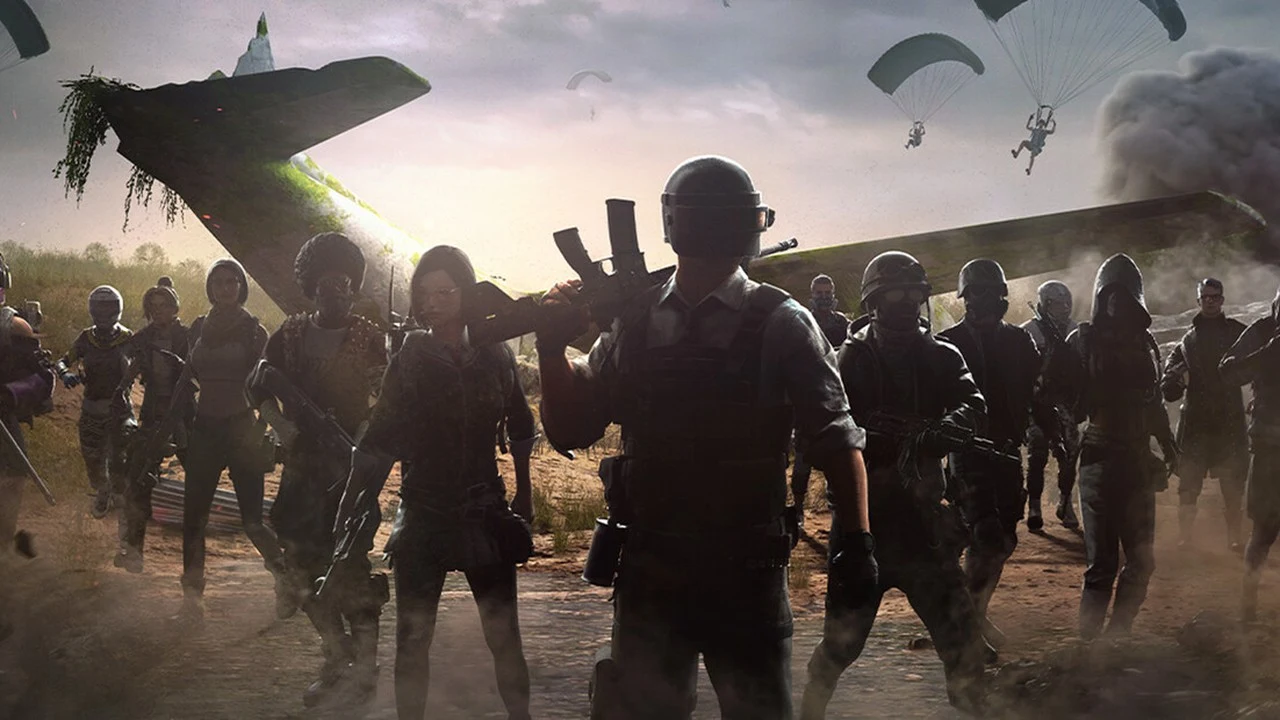
PUBG: Battlegrounds is still one of the most-played battle royales on PC, and it is free — but it runs on a heavily modified version of Unreal Engine 4 that punishes weak hardware in very specific ways. The good news is that low settings in PUBG are not a compromise: they are the competitive standard, because grass, shadows and bloom give enemies somewhere to hide. Apply the settings in this guide and you will get more frames and see enemies sooner. Every setting below is current for 2026, including the DLSS and FSR upscaling that Krafton added in Update 43.1, and the system requirements are the official ones from PUBG's Steam page.
Quick summary
- PUBG is free to play on PC (since 2022) and officially needs just 8GB of RAM and a GTX 960 to run — but the recommended spec is 16GB of RAM and a GTX 1060, because large maps like Erangel stream a lot of data.
- The single biggest FPS win is Post-Processing on Very Low — it removes the bloom and colour grading that wash out distant enemy silhouettes while costing you frames.
- Shadows, Effects and Foliage all go to Very Low — less grass for a prone enemy to vanish into, brighter interiors, and stable frames in fights.
- Update 43.1 (September 2026) added DLSS 4.5 and FSR 4.1 upscaling — if your graphics card supports it, this is free FPS with almost no visual cost.
- Use DirectX 11 Enhanced, not DX12 — DX12 can still stutter and crash on low-end hardware.
- Do not use Steam launch options — PUBG has no official list of working launch options, and PUBG Support recommends clearing them entirely.
The best PUBG settings for low-end PC
| Setting | Recommended value | Why |
|---|---|---|
| Display Mode | Fullscreen | Lowest input lag and the most stable frame pacing |
| Resolution | Native 1920x1080 | Lower resolutions blur distant targets; drop to 1280x720 only if nothing else works |
| Render Scale | 100 | Below 100 turns everything to mush; above 100 costs frames for nothing |
| Anti-Aliasing | Medium (TAA) | Smoother edges and better at spotting distant movement; Low (FXAA) if you are desperate |
| Textures | Medium | Cheap on modern GPUs and keeps loot and enemies readable; Very Low if you only have 2GB of VRAM |
| Shadows | Very Low | Huge FPS gain and brighter interiors — enemies cannot hide in dark corners |
| Post-Processing | Very Low | The single biggest win: removes bloom and colour grading that wash out silhouettes |
| Effects | Very Low | Explosions and smoke look simpler, frames stay stable in fights |
| Foliage | Very Low | Less grass for a prone enemy to vanish into — frames and visibility both improve |
| View Distance | Medium | Players render at the same distance regardless, but buildings stay visible further out; Ultra only if you have frames to spare |
| Motion Blur | Off | It smears the screen exactly when you need a sharp picture |
| V-Sync | Off | Removes tearing at the cost of input lag — not worth it in a shooter |
| DirectX Version | DirectX 11 Enhanced | Still the most stable choice; DX12 can stutter and crash |
| Sharpen | On | Helps distant enemies stand out against terrain |
| Frame Rate Limit | 60 (or your monitor's refresh rate) | Cap at a frame rate your PC can actually hold — a stable 60 beats a jumping 40–90 |
Start from the Very Low preset, then raise only Textures, Anti-Aliasing and View Distance to the values above. If your frames are still low, drop Render Scale to 85–90 — on a GTX 1650 or RX 580 that buys roughly 25–30% more GPU headroom while staying legible. If you want the same approach for other shooters, our CS2 best settings for low-end PC and Apex Legends best settings for low-end PC guides use the same method.
Your PC: what PUBG actually needs
PUBG's official Steam requirements are honest about the gap between "runs" and "runs well":
| Minimum | Recommended | |
|---|---|---|
| OS | 64-bit Windows 10 | 64-bit Windows 10 |
| CPU | Intel Core i5-4430 / AMD FX-6300 | Intel Core i5-6600K / AMD Ryzen 5 1600 |
| RAM | 8 GB | 16 GB |
| Graphics | NVIDIA GTX 960 2GB / AMD R7 370 2GB | NVIDIA GTX 1060 3GB / AMD RX 580 4GB |
| DirectX | Version 11 | Version 11 |
| Storage | 40 GB free space | 50 GB free space |
The biggest difference between the two lists is memory. The game launches with 8GB, but texture streaming on large maps like Erangel can cause stutter; 16GB largely solves that. On the graphics side, a GTX 1060-class card is a reasonable baseline for high frame rates at 1080p. The storage line has grown over time too — and an SSD reduces both loading screens and texture pop-in while you are parachuting in, so if you still have PUBG on a hard drive, moving it to an SSD is the single best upgrade you can make. PUBG only has a Windows version on PC — there is no official macOS or Linux client.
DLSS and FSR: the free FPS from Update 43.1
Update 43.1, which went live on PC on September 10, 2026, added resolution upscaling to PUBG under Settings > Graphics > Advanced > Resolution Upscaling. You get three choices: NVIDIA DLSS, AMD FSR, or Disable. DLSS 4.5 and FSR 4.1 are the supported versions, and they work the way upscaling always works: the game renders at a lower internal resolution and reconstructs the image, which boosts performance.
Two things to know before you turn it on. First, upscaling needs Anti-Aliasing on Medium or higher to work — if your AA is on Low or Very Low, the option will not do anything. Second, pick the Quality preset first and only drop to Balanced if you still need frames; Quality looks nearly identical to native resolution, while Balanced starts to soften distant detail — and in PUBG, distant detail is where the enemies are. If your card is an RTX card, use DLSS. If it is an AMD or Intel card, use FSR. If your card supports neither, Render Scale at 85–90 is the manual version of the same trick.
Launch options: leave them empty
This is the most common PUBG question on PC, and the answer is boring: leave the Steam launch options line empty. PUBG has no official list of working launch options, and PUBG Support recommends clearing them — players used to swap performance commands around, but the official guidance now is to remove them. Secondary guides from 2026 still suggest lines like `-USEALLAVAILABLECORES -malloc=system`, but those are unconfirmed, with no official description, and the `-malloc` variants are only suggested for systems with more than 16GB of RAM. Test one change at a time if you insist on experimenting, and remove it if your frames do not improve — but on a low-end PC, the in-game settings in this guide will do far more than any launch command.
Windows and network: the fixes outside the game
The settings above fix the game. These steps fix everything around it:
1. Update your graphics drivers first. A driver from six months ago can cost you 10–20 fps in a game that gets regular updates. Do this before you touch anything else.
2. Turn on Game Mode and set PUBG to High Performance. In Windows Settings > Gaming > Game Mode, turn Game Mode on. Then in Settings > System > Display > Graphics, find PUBG and set it to High Performance so Windows gives it your dedicated GPU.
3. Disable VBS (Virtualization-Based Security) if you can. It costs frames in some games on some machines — check your BIOS/Windows Security settings, and only change it if you are comfortable doing so.
4. Enable XMP in your BIOS. If your RAM is running at 2133MHz instead of its rated 3200MHz, you are leaving performance on the table in a game that is sensitive to memory speed.
5. Close your browser before you play. Chrome with a few tabs open can eat 2GB of RAM on its own — a quarter of an 8GB machine. Close it, and PUBG gets that memory back.
6. Play on 5GHz Wi-Fi or a wired connection. PUBG is a network-heavy game, and a 2.4GHz connection in a crowded Indian apartment block is a recipe for lag spikes. If you cannot run a cable, sit close to the router and use the 5GHz band.
For the full Windows-side optimisation — power plans, hardware-accelerated GPU scheduling, background apps and driver updates — our how to increase FPS in any game guide walks through every step, and our best game settings for low-end PC guide covers the settings that matter most in any game.
What about FOV and sensitivity?
FOV (field of view) is a personal choice, but 90 is the competitive standard in PUBG — wide enough to see what is beside you, narrow enough that distant enemies do not shrink to nothing. Higher FOV costs a few frames and makes far targets smaller, so do not push it to 103 just because the slider goes there. For sensitivity, there is no magic number: start at 800 DPI with an in-game sensitivity around 25–30, then adjust in the training grounds until a 180-degree flick feels natural. The important thing is consistency — pick a sensitivity and stick with it for a week before changing it again.
One last thing: this guide is for PUBG: Battlegrounds on PC (Steam). BGMI is the separate Indian mobile version — if you play on a phone, our how to fix lag in BGMI on a low-end phone guide is the one you want.
Frequently asked questions
What are the best PUBG settings for max FPS on a low-end PC?
Fullscreen, native 1080p, Render Scale 100, Anti-Aliasing Medium, Textures Medium, Shadows Very Low, Post-Processing Very Low, Effects Very Low, Foliage Very Low, View Distance Medium, Motion Blur off, V-Sync off, DirectX 11 Enhanced, Sharpen on, and a frame rate cap your PC can actually hold — usually 60.
Can PUBG run on 8GB of RAM?
Yes — 8GB is the official minimum, with a GTX 960 and an i5-4430. But texture streaming on large maps can stutter at 8GB, and the recommended spec is 16GB. If you only have 8GB, close your browser and background apps before playing, and keep Textures on Medium or lower.
Does PUBG support DLSS or FSR?
Yes. Update 43.1 (September 2026) added DLSS 4.5 and FSR 4.1 under Settings > Graphics > Advanced > Resolution Upscaling. It needs Anti-Aliasing on Medium or higher. Use DLSS on NVIDIA cards and FSR on AMD or Intel cards.
Should I use DirectX 11 or DirectX 12 in PUBG?
DirectX 11 Enhanced. It is still the most stable choice in 2026 — DX12 can stutter and crash on low-end hardware. If you try DX12 and it works for you, keep it, but DX11 Enhanced is the safe default.
Are there any PUBG launch options that help FPS?
No official ones. PUBG has no official list of working launch options, and PUBG Support recommends clearing them entirely. Secondary guides suggest commands like `-USEALLAVAILABLECORES`, but these are unconfirmed — the in-game settings in this guide will do far more than any launch command.
Related articles
 Best Indie Games for Low-End PC: 10 Small…
 GTA 6 Workouts: How to Raise Strength and…
 Apex Legends Best Settings for Low-End PC…
 Best Co-op Games for Low-End PC: 10 Games…
SavyGames — PUBG Best Settings for Max FPS (2026 Guide)
MissOutPC — PUBG Launch Options & Best Settings 2026 for FPS
GameMapa — PUBG Settings for FPS: PC Graphics, 120 FPS Console
PCGamingUniverse — Best PUBG Settings for FPS in 2026
Nedese — PUBG System Requirements 2026 and Low FPS Settings
Hero image: KRAFTON.