BGMI Best Settings for Low-End Phones: How to Get Max FPS in 2026
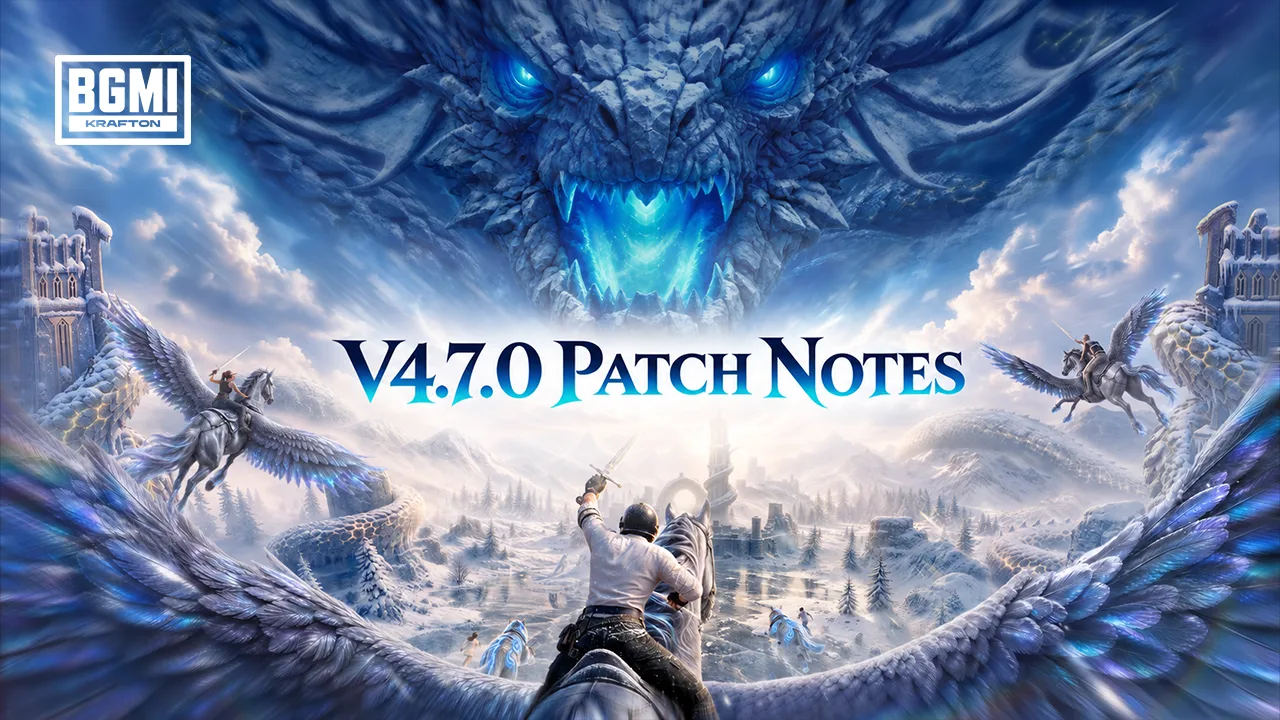
BGMI is India's biggest mobile battle royale, and it is also one of the most demanding games you can run on a budget phone. The good news is that you do not need a new phone to get smooth gameplay — you need the right settings. On a low-end phone, the goal is not the prettiest picture; it is a frame rate that stays steady for a full 25-minute match. This guide covers BGMI 4.7, which Krafton started rolling out on November 18, 2026, and it gives you the exact settings for 4GB, 6GB and 8GB phones, plus the phone-side steps that matter just as much as anything inside the game. If your phone is already struggling, our how to fix lag in BGMI guide covers the deeper fixes; if you are on a very old phone, BGMI Air — the lighter 1GB version, in open beta now with a full launch on December 10 — may be the better choice.
Quick summary
- Set Graphics to Smooth — it is the lightest preset, and the one Krafton's own 90 FPS guide tells you to pick first.
- Set Frame Rate to the highest option your phone holds for a full match — usually Extreme (60 FPS); a steady 40 FPS beats a 60 FPS setting that keeps dipping.
- Turn Shadows and Anti-Aliasing off — they cost frames and give you nothing in a fight.
- Turn Auto-Adjust Graphics off — it changes your settings mid-match and causes stutter.
- Use your phone's game mode, close background apps and keep 5GB+ of storage free — on a 4GB phone, background apps matter as much as graphics settings.
- Never use GFX tools or third-party FPS unlockers — Krafton bans accounts for them; over 2,400 accounts were banned in March 2026 alone.
The best BGMI settings for low-end phones
Open BGMI, tap the settings gear, then open the Graphics & Audio tab. Menu labels can differ slightly between phones and BGMI versions, so match the idea, not only the word.
| Setting | Recommended value | Why |
|---|---|---|
| Graphics | Smooth | The lightest preset; Krafton's own high frame rate guidance starts here |
| Frame Rate | Highest your phone holds — usually Extreme (60 FPS) | Smooth gameplay matters more than the number on the menu |
| Style | Classic | The cheapest style to render; Colorful only on 6GB+ phones that run cool |
| Anti-Aliasing | Off | Softens edges you never notice in a fight, costs real frames |
| Shadows | Off | One of the biggest frame savers on budget chips |
| Auto-Adjust Graphics | Off | Stops the game changing settings mid-match and causing stutter |
| Power Saving | Off | It caps your frame rate — the opposite of what you want |
| Effects Quality | Low | Simpler explosions and smoke, stable frames in fights |
The right settings for your RAM
BGMI's frame rate ladder runs Low, Medium, High, Ultra (40 FPS), Extreme (60 FPS), Extreme+ (90 FPS) and Ultra Extreme (120 FPS). The top two only appear on phones Krafton supports — if 90 or 120 FPS is missing from your menu, your phone is not on the list, and no setting will unlock it. Pick your tier below, then test it for a full match in Erangel before you trust it.
| Phone | Graphics | Frame Rate | Anti-Aliasing | Shadows |
|---|---|---|---|---|
| 3GB RAM (entry-level) | Smooth | High (30 FPS) | Off | Off |
| 4GB RAM (Redmi 10, Realme C-series, Samsung A-series budget) | Smooth | Ultra (40 FPS) | Off | Off |
| 6GB RAM (Poco X6, Redmi Note 13 Pro, Samsung A54, iQOO Z9) | Smooth | Extreme (60 FPS) | Off | Off |
| 8GB+ RAM (OnePlus, iQOO Neo, Samsung S-series, iPhone 13+) | Smooth, or Balanced if it runs cool | Extreme (60 FPS), or 90 FPS if supported | Off | Off |
What counts as low-end here is a phone with 4GB to 6GB of RAM, an entry gaming chip such as a MediaTek Helio G85 to G99, a Snapdragon 680 or 685, or a Dimensity 6020 to 6100+, and a 60Hz or 90Hz screen with no vapour chamber or other big cooling system. Krafton's own minimum for Android is far lower — Android 5.0, an Adreno 306 GPU and 1.5GB of RAM — but the minimum only means the game opens, not that it plays well.
The phone-side steps that matter as much as the settings
Settings inside BGMI are only half the job. Budget chipsets in 2026 do not lack raw power for BGMI entirely — most can technically render the game — but they have very little thermal headroom, so heat is the real ceiling. Do these before every session:
1. Turn on your phone's game mode. It kills background processes and blocks notifications while you play.
2. Close all background apps before you launch BGMI. On a 4GB phone this alone can be the difference between 40 FPS and constant stutter.
3. Keep at least 5GB of storage free. A full phone thrashes its storage and micro-stutters mid-game.
4. Turn battery saver off while playing. It caps performance and is an FPS killer.
5. Play in a cool spot and take the case off for long sessions. If the phone heats up, drop one frame rate level — a steady 40 FPS feels better than 60 FPS that keeps dipping.
6. Download only the maps and resources you actually play. The full resource pack is 30-35GB — never install it on a low-end device.
Sensitivity and gyroscope: test, do not copy
Sensitivity is personal, and copying a pro player's numbers will usually make your aim worse, not better. Start from the Medium sensitivity preset, then go to the Training Ground and adjust one slider at a time until flicks and tracking feel right. The same goes for the gyroscope: many competitive players use it for recoil control, but if you have never used it, turn it on in the Training Ground first and give it a few days before you judge it. The one rule that applies to everyone is to never use third-party tools to force higher frame rates or unlock graphics options — Krafton treats them as cheating, and accounts get banned for it.
BGMI Air: the lighter option if your phone still struggles
If Smooth plus 40 FPS still stutters on your phone, BGMI Air is worth trying. It is Krafton's lighter version of the same game, built for budget phones with less storage and memory: the initial download is around 1GB, it keeps the same frame rate ladder, and its lowest graphics presets (Air Exclusive and Super Smooth) are even lighter than Smooth. The open beta is live now in India, and the full launch is December 10, 2026. Our BGMI Air open beta guide explains how to download it. If you play Free Fire as well, our Free Fire best settings for low-end phones guide uses the same method, and if you are shopping for a new phone, our best gaming phones under ₹20,000 list covers the budget options that run BGMI at a stable 60 FPS.
Frequently asked questions
What are the best BGMI settings for a 4GB RAM phone?
Smooth graphics, Ultra frame rate (40 FPS), Classic style, anti-aliasing off, shadows off and auto-adjust graphics off. Close all background apps before playing and keep at least 5GB of storage free.
Is Smooth or HD better for low-end phones in BGMI?
Smooth, every time. HD and HDR look nicer in the lobby but cost frames in fights, and on a budget phone they can also cap the frame rate options available to you.
Can a 3GB RAM phone run BGMI at 60 FPS?
Usually not — most 3GB phones top out at High (30 FPS) or Ultra (40 FPS) with Smooth graphics and zero background apps. If 40 FPS still stutters, try BGMI Air, the lighter version of the game.
Why does my FPS drop after 10 minutes of playing?
Heat. Budget phones throttle when they get hot, so the frame rate falls mid-match. Play without a case, in a cool room, and drop one frame rate level if the phone keeps heating up.
Are GFX tools safe to use for more FPS in BGMI?
No. Krafton treats third-party graphics unlockers as cheating and bans accounts for using them — over 2,400 accounts were banned in March 2026 alone. Use the in-game settings in this guide instead.
Related articles
 Dota 2 Best Settings for Low-End PC: Max…
 Best Indie Games for Low-End PC: 10 Small…
 PUBG Best Settings for Low-End PC: Max FP…
 GTA 6 Workouts: How to Raise Strength and…
Gaming Nation — Best BGMI Settings for Low End Phones India 2026: 60 FPS
TalkEsport — BGMI Air FPS: All 7 Frame Rate Options Explained
Redrag — Best BGMI Settings for Phones Under ₹15,000 in India (2026)
BGMI Tools — How to Fix Lag in BGMI
BGMI Arena — How to Boost BGMI FPS: Best Graphics Settings for Smooth Gameplay
Hero image: KRAFTON.